

Set Up iPad Check-In for a Calmer Office
- karl50784
- Aug 12
- 6 min read
A client arrives while you are in the middle of a session. They may knock, hover in the hallway, or sit down wondering whether anyone knows they are there. You feel the interruption even if you do not leave the room. The person in front of you can feel it, too.
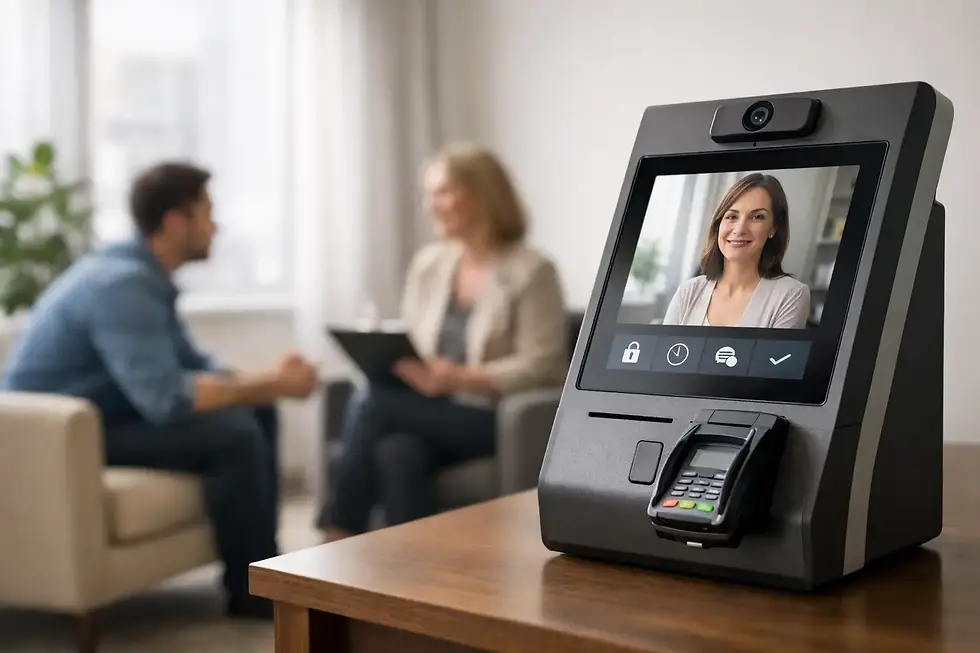
To set up iPad check-in is to give arrivals a clear next step without asking you to divide your attention. For a therapy practice, salon suite, wellness office, or small studio without a dedicated receptionist, it can change the feeling of the first few minutes. Clients know they have arrived. You receive a quiet notification. Your current appointment remains the priority.
This does not need to become another complicated office system. The best check-in setup is simple enough that clients understand it immediately and calm enough that it supports the tone you have worked hard to create.
Start with the arrival experience you want
Before choosing where the iPad goes or which notification you prefer, think about what a new client sees when they walk in. Are they entering a shared building lobby, a private waiting room, or a small studio where you may be working a few feet away? The right setup should answer one unspoken question quickly: “What should I do now?”
A check-in screen works best when it is visible without feeling demanding. Place the iPad near the entrance or waiting area, at a comfortable standing height or on a small table where a seated client can reach it. Avoid locations that require clients to walk past treatment rooms, search for a sign, or stand directly outside a closed door.
The device itself should feel intentional, not borrowed from your personal life. A simple stand, consistent screen brightness, and a clearly labeled charging cable can make a meaningful difference. If the iPad is in a shared hallway, use a secure stand or mounting option. In a private office, a stable tabletop stand may be all you need.
What you need to set up iPad check-in
The practical requirements are modest: an iPad, reliable internet access, a power source, and a check-in app that sends arrival notifications the way you prefer. Wi-Fi is usually enough. If your office Wi-Fi is unreliable or your setup is mobile, an iPad with cellular service can keep the check-in point available without relying on a building network.
Choose a dedicated iPad whenever possible. It reduces the chance that the check-in screen disappears because someone needs the device for notes, music, or personal messages. You do not need the newest model. A well-functioning iPad with a clear screen and dependable connection is more valuable than extra features clients will never use.
You will also want to decide who should be notified. A solo practitioner may only need a text message. A small team may want arrivals sent to the practitioner assigned to that appointment, a shared office phone, or an email inbox monitored between sessions. Keep the notification path short. If several people must interpret or relay the alert, the benefit of check-in starts to fade.
Set up the screen in a few thoughtful steps
Begin by installing your chosen check-in app on the iPad and signing in with the account that manages your office. Purple Couch App, for example, is designed around this focused workflow: a client checks in on the iPad, the practitioner receives a text or email, and the session in progress can continue without a verbal interruption.
Then make the client-facing screen as clear as possible. Use a welcoming instruction such as “Please check in when you arrive” rather than office language that feels formal or confusing. Ask only for the information needed to identify the person and notify the right practitioner. A client should not have to complete a form, create an account, or explain why they are there just to let you know they arrived.
Next, connect your notifications. Send a test check-in and confirm that the text or email reaches the intended person promptly. Test it when you are on Wi-Fi and, if relevant, when the device is using cellular data. Also check that alerts are allowed on your phone. A perfectly placed iPad cannot help if notifications have been silenced, filtered, or sent to an old email address.
Finally, place the iPad in its everyday location and run through the process from the client’s perspective. Walk in, look around, check in, and wait. Is the instruction easy to spot? Does the screen return to the starting point after use? Would someone who is anxious, running late, or visiting for the first time know what to do without asking? Small adjustments here prevent awkward waiting moments later.
Keep client instructions short
A sign can be helpful, especially in a shared office building, but it should support the iPad rather than replace it. One short sentence is usually enough: “When you arrive, please check in on the iPad and have a seat.”
Avoid long explanations about office procedures. Clients do not need to know how the notification system works. They only need reassurance that their arrival has been acknowledged. If you want to set expectations, add a warm note such as, “Your practitioner will be with you as soon as they are available.”
Choose notifications that protect your focus
Text notifications are often the most immediate choice for practitioners who move between rooms or keep their phone nearby during the day. Email can work well for office managers or teams who prefer a less urgent signal. Either way, the goal is awareness, not pressure to respond the instant a client walks in.
Consider your setting and professional boundaries. If you are a therapist in session, a subtle vibration on a phone or smartwatch may be enough. You can acknowledge the arrival at a natural transition rather than interrupting a meaningful moment. If you run a salon or studio with a more active floor, a visible but discreet notification may help you greet the client promptly.
Set a reasonable expectation for late arrivals and early arrivals, too. Check-in confirms presence. It does not require you to shorten another client’s appointment or begin before you are ready. A clear system helps you hold that boundary kindly because the arriving client knows they have been seen without needing to seek you out.
Make privacy part of the setup
For client-centered practices, privacy should shape the screen and the physical placement of the iPad. Do not display a schedule, a list of names, or details about the reason for a visit. Keep the check-in interaction limited to what is necessary.
Think about sightlines. In a shared waiting area, angle the iPad so another visitor cannot easily read the screen. In a therapy or medical setting, confirm that your selected platform and office practices support your privacy obligations. A HIPAA-compliant tool can be an important part of the picture, but it does not replace thoughtful configuration, secure devices, and sound policies.
Protect the iPad itself with a device passcode and keep its operating system and app current. If staff members need access, decide who is responsible for settings, billing, and notification changes. Even a very simple system benefits from clear ownership.
Build a small routine around the iPad
The setup is quick, but a few habits keep it dependable. At the start of each day, confirm that the iPad is charged, connected, and showing the check-in screen. Once a week, send a test notification. When a staff member changes a phone number or email address, update it immediately rather than waiting for a missed arrival to expose the problem.
It also helps to have a backup plan for the occasional outage. If Wi-Fi goes down, cellular service may cover the gap. If the iPad needs charging or an update, a small sign asking clients to knock once can provide a temporary alternative. The point is not perfection. It is making sure a minor technical issue does not leave someone waiting uncertainly.
When a different approach may fit better
An iPad check-in system is especially useful when clients arrive while you are occupied and cannot reliably monitor the entrance. If someone is always at the front desk, or if your office has a building receptionist who personally announces every arrival, it may be unnecessary.
It may also be less useful in spaces where clients are expected to walk directly into a class, a group session, or a retail-style environment. In those cases, a welcome sign or staff greeting may be more natural. The right choice depends on whether quiet notification would genuinely protect the attention and atmosphere your service requires.
A well-placed iPad does more than announce an arrival. It gives clients a confident first action and gives you permission to stay present with the person who already has your attention. That is a small operational change with a human effect clients can feel before the appointment even begins.


Comments