

iPad Lobby Kiosk Setup That Protects Your Focus
- karl50784
- Jul 29
- 6 min read
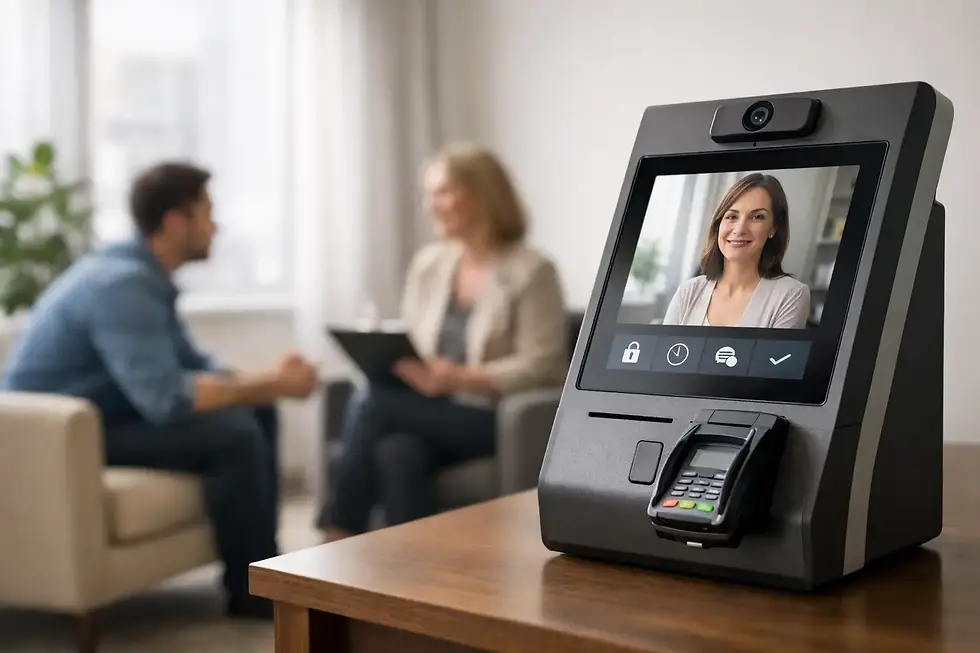
A client arrives a few minutes early while you are midway through a session. They hesitate at the door, look for someone to greet them, and wonder whether they should knock. You hear the movement outside and face a familiar choice: interrupt the person in front of you or let the next client wait in uncertainty. A thoughtful iPad lobby kiosk setup removes that small but meaningful disruption.
For a therapy practice, salon suite, wellness office, or private studio, the goal is not to make your lobby feel like a corporate reception desk. It is to create a clear, quiet arrival moment. Clients know what to do. You know they are there. The person you are serving keeps your full attention.
Start With the Arrival Experience, Not the Device
Before choosing a stand or opening an app, picture what a new client sees when they enter your space. Are they arriving from a shared hallway? Is the door locked between appointments? Is there a waiting room, or simply a chair outside your treatment room? The right setup depends on these details.
The iPad should answer the first question an arriving client has: “What should I do now?” Place it where it is visible immediately, with a simple welcome message and one clear action to check in. If clients have to search for the screen, read a long set of instructions, or decide whether they are allowed to touch it, the kiosk adds friction instead of relieving it.
Keep the wording warm and brief. “Welcome. Please check in when you arrive” is usually enough. Avoid asking clients to explain why they are visiting, enter clinical details, or navigate several screens in an open lobby. The check-in moment should feel respectful, not exposed.
For offices with a shared entrance, consider the path from the door to the iPad. A small sign can help, especially in the first few weeks. In a private suite, the iPad may sit just inside the door. In a shared building lobby, it may make more sense to place it near your waiting area, where clients can check in without blocking foot traffic.
Choose a Physical Setup That Feels Intentional
An iPad on a desk can work, but a dedicated stand often gives clients more confidence. It signals that the device has a purpose and helps keep it upright, charged, and in the right place. The best choice is less about appearance than stability, visibility, and privacy.
A countertop stand works well when you have a reception table, console, or side cabinet near the entrance. A floor stand can be useful in a larger waiting area, but make sure it does not create an obstacle for clients with mobility aids, strollers, or bags. Wall mounting can keep a small space tidy, though it is less flexible if you later rearrange the room.
Think about screen height from the client’s perspective. A screen that is too low can be awkward for someone standing, while one mounted too high can be difficult for a seated client to use. If your practice serves people with varied mobility needs, a countertop placement that can be reached from a chair is often the more considerate option.
Security matters too, but it does not need to make the space feel guarded. Use a lockable stand or cable if the iPad is visible from a public hallway or left unattended overnight. Keep the charging cable tidy and out of walkways. A battery that dies at 2:00 p.m. turns a reassuring arrival ritual into another thing you have to monitor.
Set Up the iPad for One Clear Job
A lobby iPad should not look like a personal device. Remove visual clutter, use a neutral wallpaper, and keep only the check-in experience available during business hours. The point is to prevent accidental taps, notifications, or distractions from becoming part of a client’s arrival.
Use the iPad’s Guided Access feature or a kiosk-style configuration to keep the check-in app on screen. This is especially helpful if clients include children, if the iPad is in a busy shared area, or if you simply do not want someone opening settings by mistake. Test the setup yourself from the perspective of a first-time visitor: Can you get through the check-in without knowing anything about the practice or the device?
Turn off personal notifications and make sure the iPad is not signed into an account that displays private messages, photos, or email. Enable automatic screen locking only if it does not interfere with the check-in flow. If the screen sleeps quickly, clients may assume the kiosk is not working. A longer display timeout is often more practical for a lobby device.
If you use Purple Couch App, the workflow is intentionally simple: a client checks in on the iPad, you receive a text or email notification, and you continue the conversation or service already in progress. Setup is designed to take minutes rather than an afternoon of configuration.
Make Privacy Part of Your iPad Lobby Kiosk Setup
For client-centered practices, privacy is not a technical extra. It shapes whether a person feels comfortable from the moment they arrive.
Position the screen so other clients cannot easily read it from a chair across the room or through a doorway. A privacy screen protector may be worthwhile in a shared lobby, although it can slightly reduce brightness and viewing angles. That trade-off is usually worth considering when names or appointment details could be visible to others.
Keep the information collected at check-in minimal. In most cases, a name or simple confirmation is all you need to know that someone has arrived. Intake forms, payment questions, health updates, and detailed appointment changes belong in a more private process. Asking too much at a public-facing screen can make a calm arrival feel transactional or uncomfortable.
For healthcare and wellness settings, choose a check-in platform that supports your privacy and compliance responsibilities. HIPAA compliance is particularly relevant when protected health information is involved, but good privacy design also matters in settings that are not covered by HIPAA. A client should never have to wonder who can see what they enter.
Decide How You Want to Be Notified
A notification only helps if it reaches you without pulling you out of the work you are doing. Text messages can be useful when you move between rooms or are not always near a computer. Email may be enough for a quieter office where you check a device between appointments. Some practitioners prefer both, especially when they work in a suite with inconsistent cell service.
Test the alert in the exact places where you work. Send a check-in while the iPad is connected to your usual Wi-Fi, then try again from the treatment room or studio floor. If Wi-Fi is unreliable, a cellular-enabled iPad can offer welcome peace of mind. It adds a monthly connectivity cost, but may be worth it when a missed arrival would create repeated awkward moments.
Set an expectation for yourself as well. A check-in notification means a client is present, not that you must immediately leave your current session. You can finish a thought, complete a treatment step, or meet a natural pause before greeting them. The system protects your focus because it gives you awareness without requiring an interruption.
Test It Before Clients Rely on It
Do one complete trial run before placing the kiosk into service. Check in as a client would, confirm that the notification arrives, and verify that the iPad remains on the correct screen afterward. Ask a friend or colleague to try it without instructions. Their hesitation will reveal what needs simplifying.
Then prepare for the ordinary things that happen in a real office: Wi-Fi briefly drops, the charger gets unplugged, a client arrives far earlier than expected, or someone is unsure whether they should check in for a partner. A short sign with a backup instruction, such as “If the screen is unavailable, please have a seat and we will be with you shortly,” can prevent confusion without inviting people to knock.
Review the setup after a week. If clients still pause at the door, move the kiosk closer to their natural line of sight. If you are missing notifications, adjust your alert method. If the lobby feels crowded, choose a smaller stand or relocate the iPad to a more natural surface. The best arrangement is the one clients use without thinking about it.
A well-placed iPad does more than announce an arrival. It tells clients that their presence has been noticed, even while you are giving someone else your full care. That small assurance can change the tone of the waiting room - and protect the attention your work asks of you.


Comments